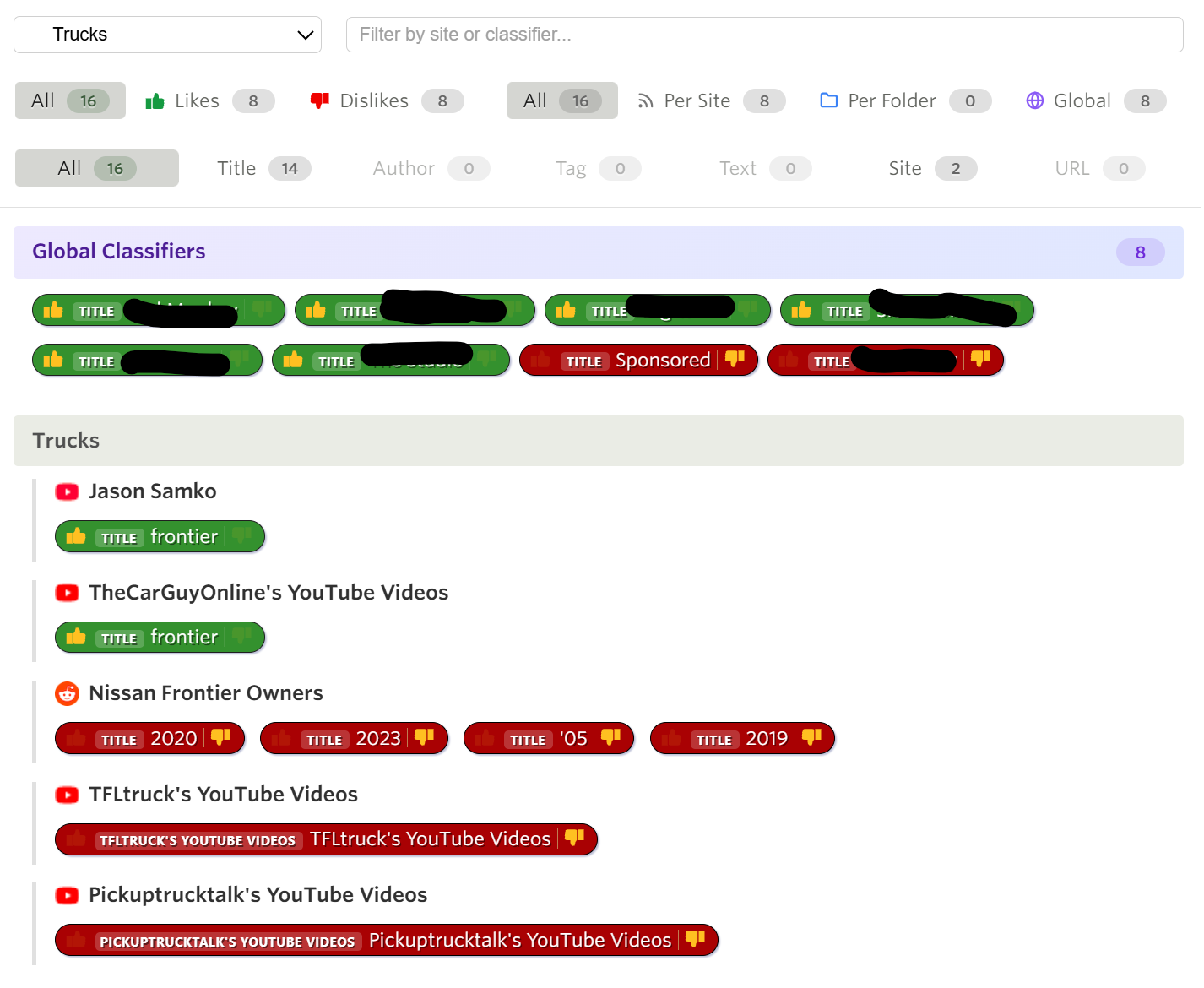
<p>Until now, the Intelligence Trainer was strictly per-feed. Train a title, author, or tag on one site and it only affected that site. If you wanted to hide a topic everywhere, you had to repeat that training on each feed. With a few feeds, that’s fine. With a hundred, it’s tedious. With five hundred, it’s a non-starter.</p>
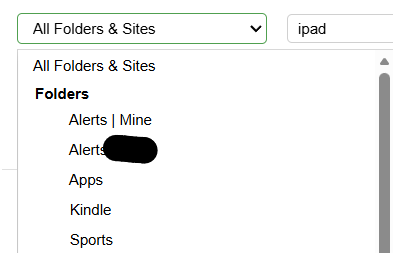
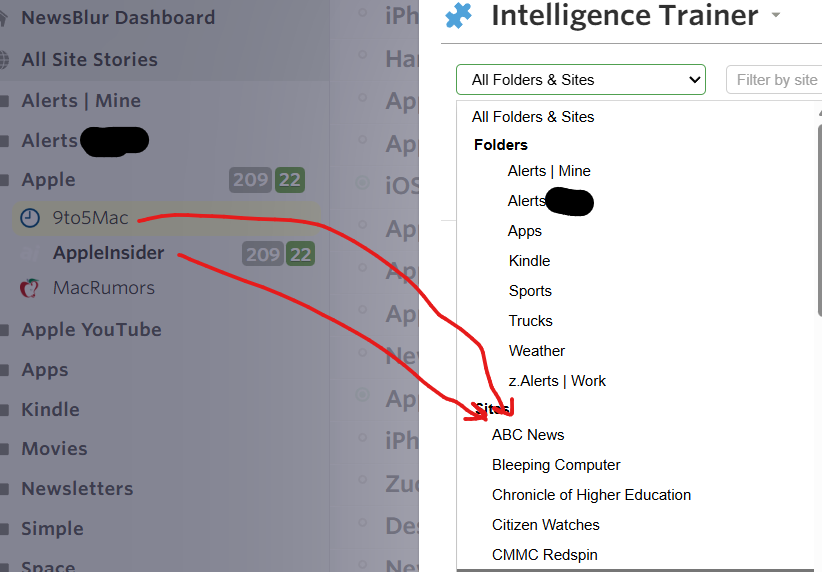
If you’re a Premium Archive subscriber, you can now set any classifier to apply globally across all your feeds, or scoped to a specific folder. Train “sponsored” as a dislike once, and it hides sponsored stories everywhere. Train “kubernetes” as a like in your Tech folder, and it highlights kubernetes stories across every feed in that folder without touching the rest of your subscriptions.
Three scope levels
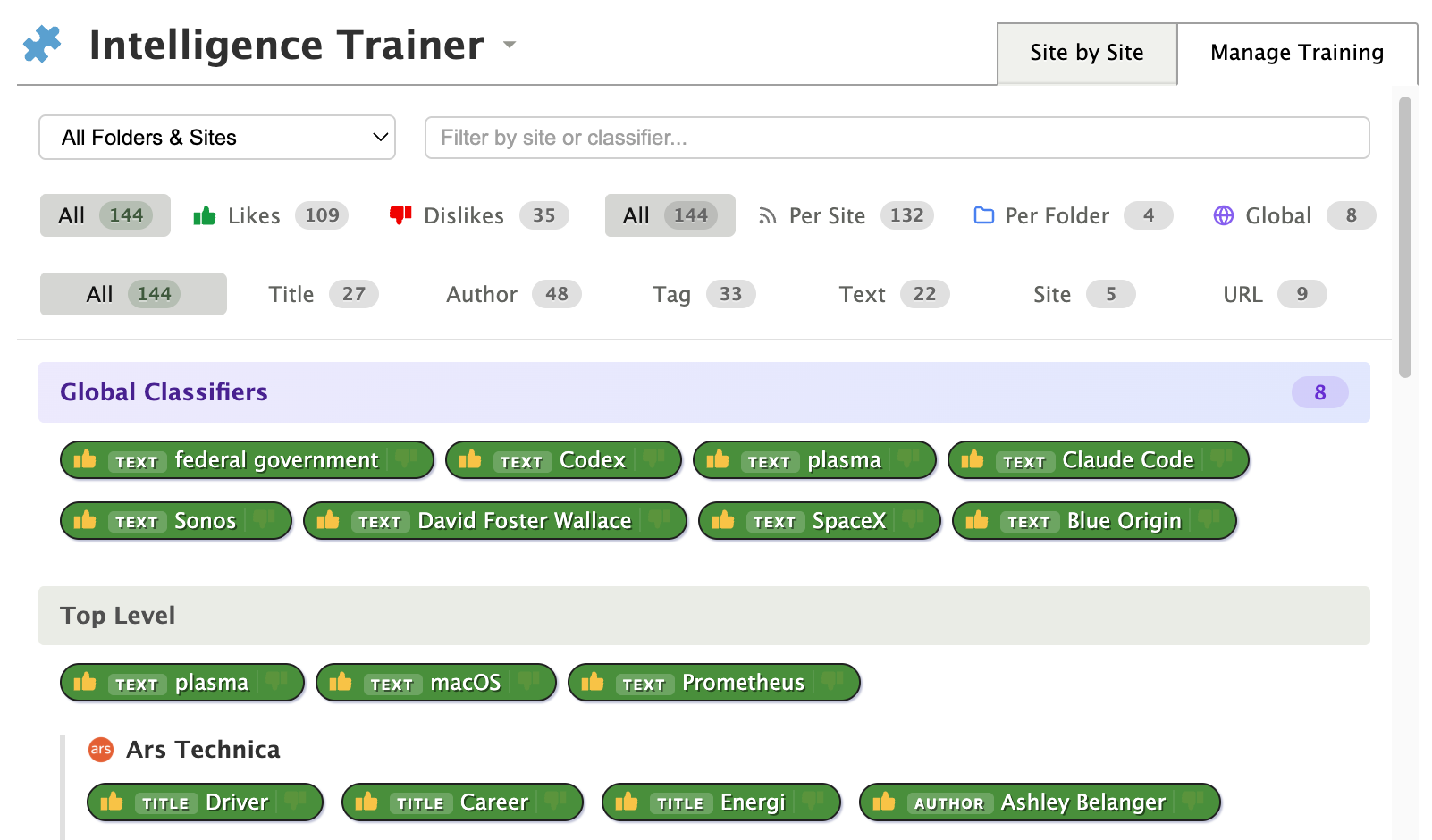
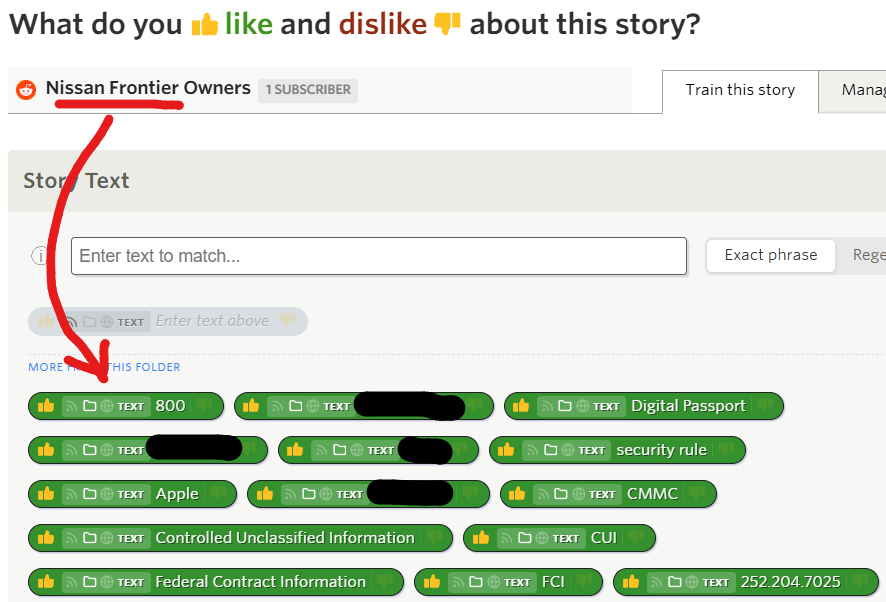
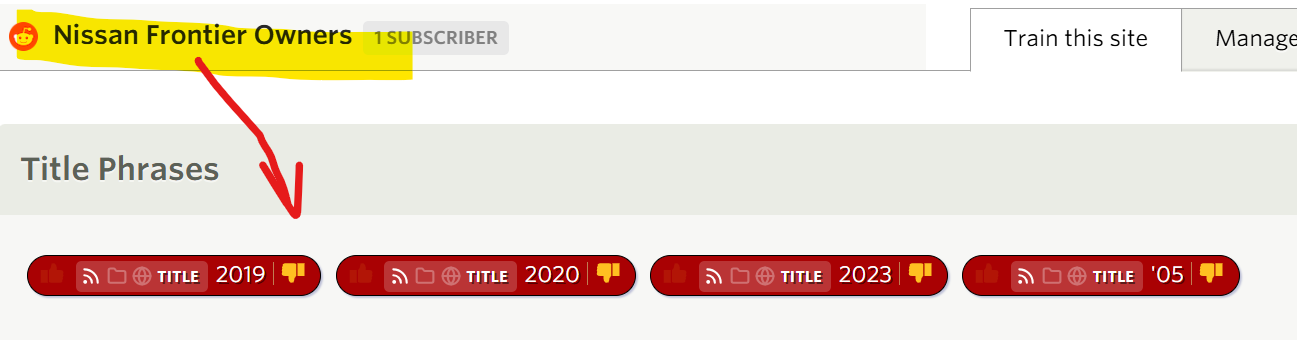
Every classifier pill in the Intelligence Trainer now shows three small scope icons on the left: a feed icon, a folder icon, and a globe icon.
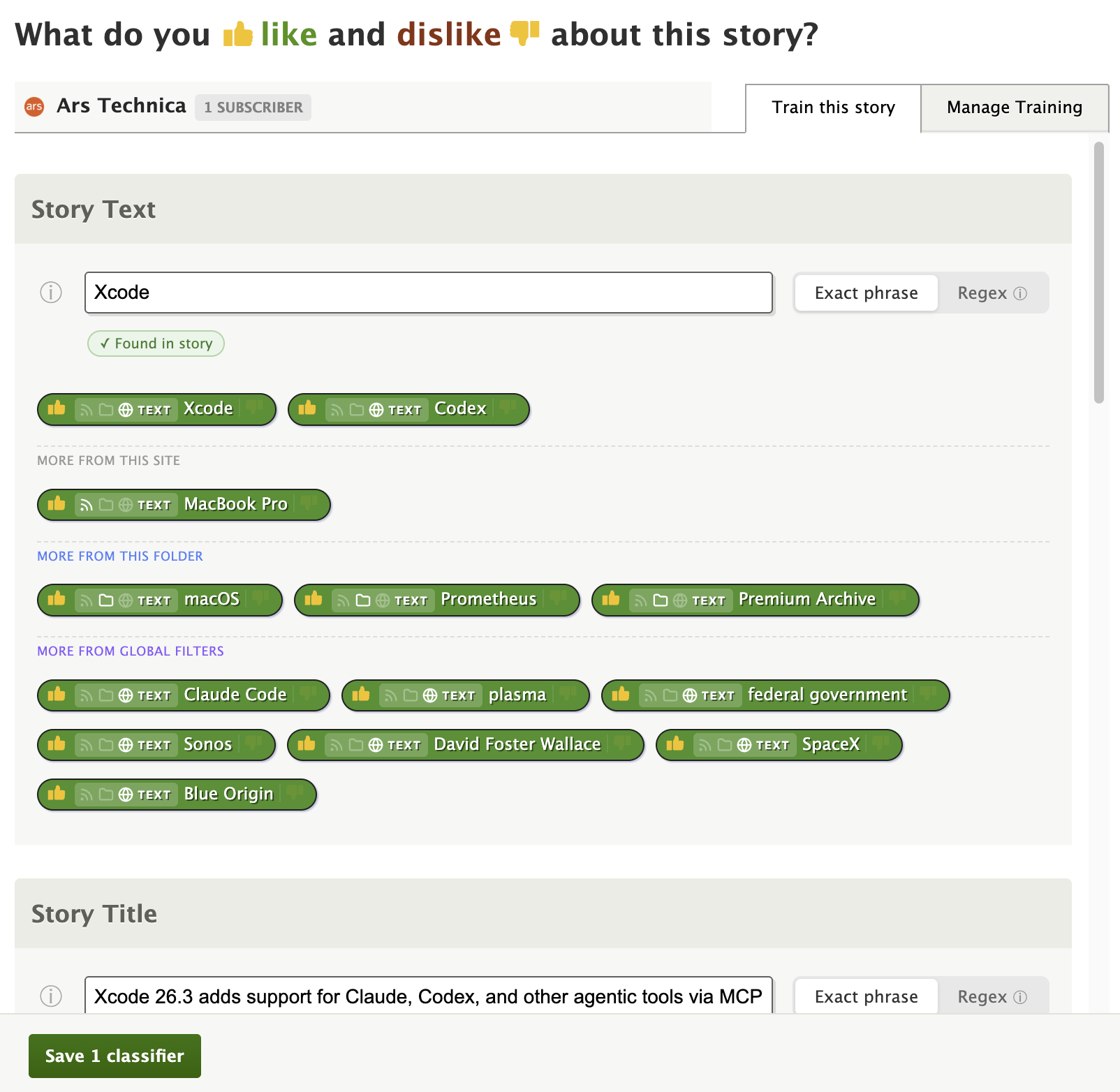
- Per Site (feed icon) — The default. The classifier only applies to the feed you’re training. This is how classifiers have always worked.
- Per Folder (folder icon) — The classifier applies to every feed in the same folder. If you later move the feed to a different folder, the classifier stays tied to the original folder.
- Global (globe icon) — The classifier applies to every feed you subscribe to.
Click any scope icon to switch. The active scope is highlighted, and a tooltip explains each level. Your choice is saved with the classifier.
Real-world examples
Hide a topic everywhere. Subscribe to lots of news feeds but never want to read about a recurring topic? Open the trainer on any feed, add the topic as a text or title classifier, thumbs-down it, and click the globe icon. Done — it’s hidden across all your feeds.
Focus on a topic within a folder. Have a “Tech” folder with 40 feeds? Train “machine learning” as a like with the folder scope, and every feed in that folder will surface machine learning stories in your Focus view. Your cooking and sports feeds stay untouched.
Dislike a prolific author. Some authors are syndicated across multiple sites. Instead of training the same author name on each feed, set it to global and it applies everywhere at once.
Manage Training scope filter
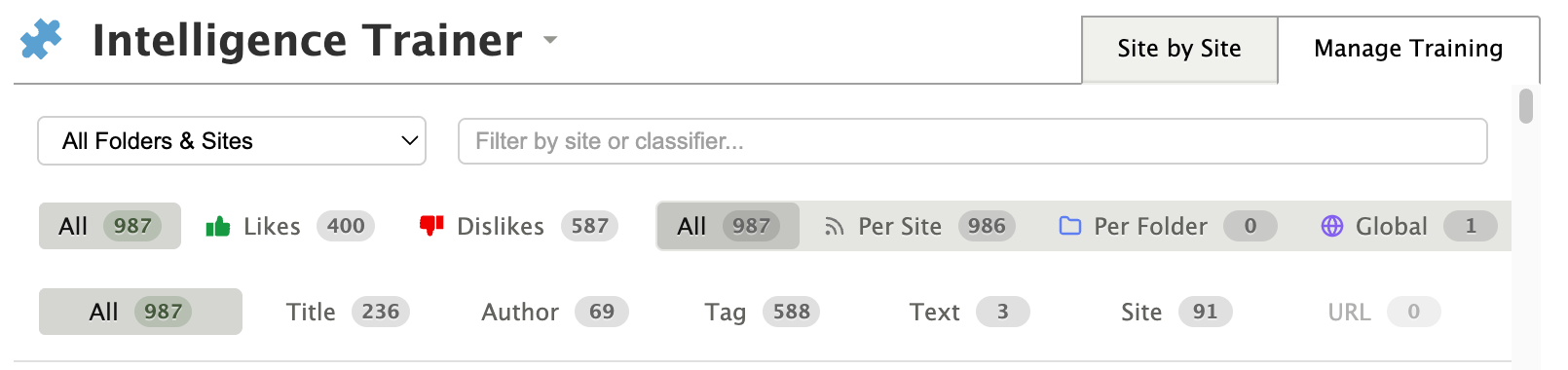
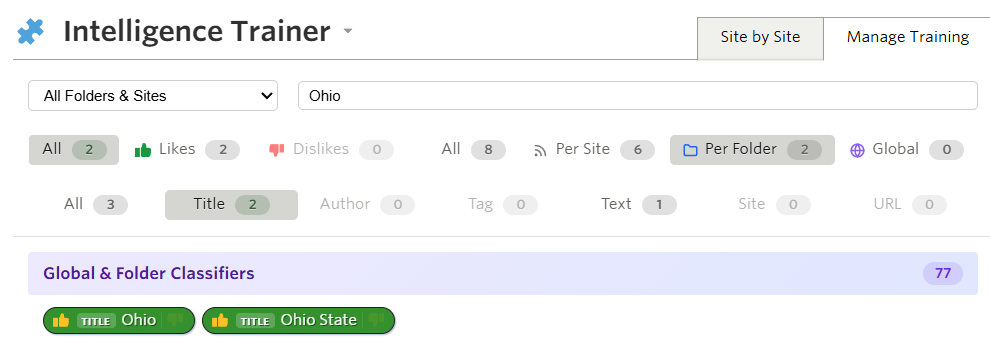
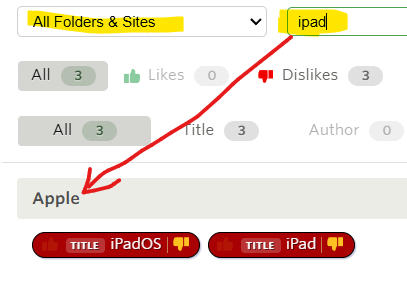
The Manage Training tab now includes a scope filter alongside the existing sentiment, type, and search filters. You can quickly see all your global classifiers, all your folder-scoped classifiers, or narrow down to just per-site training.
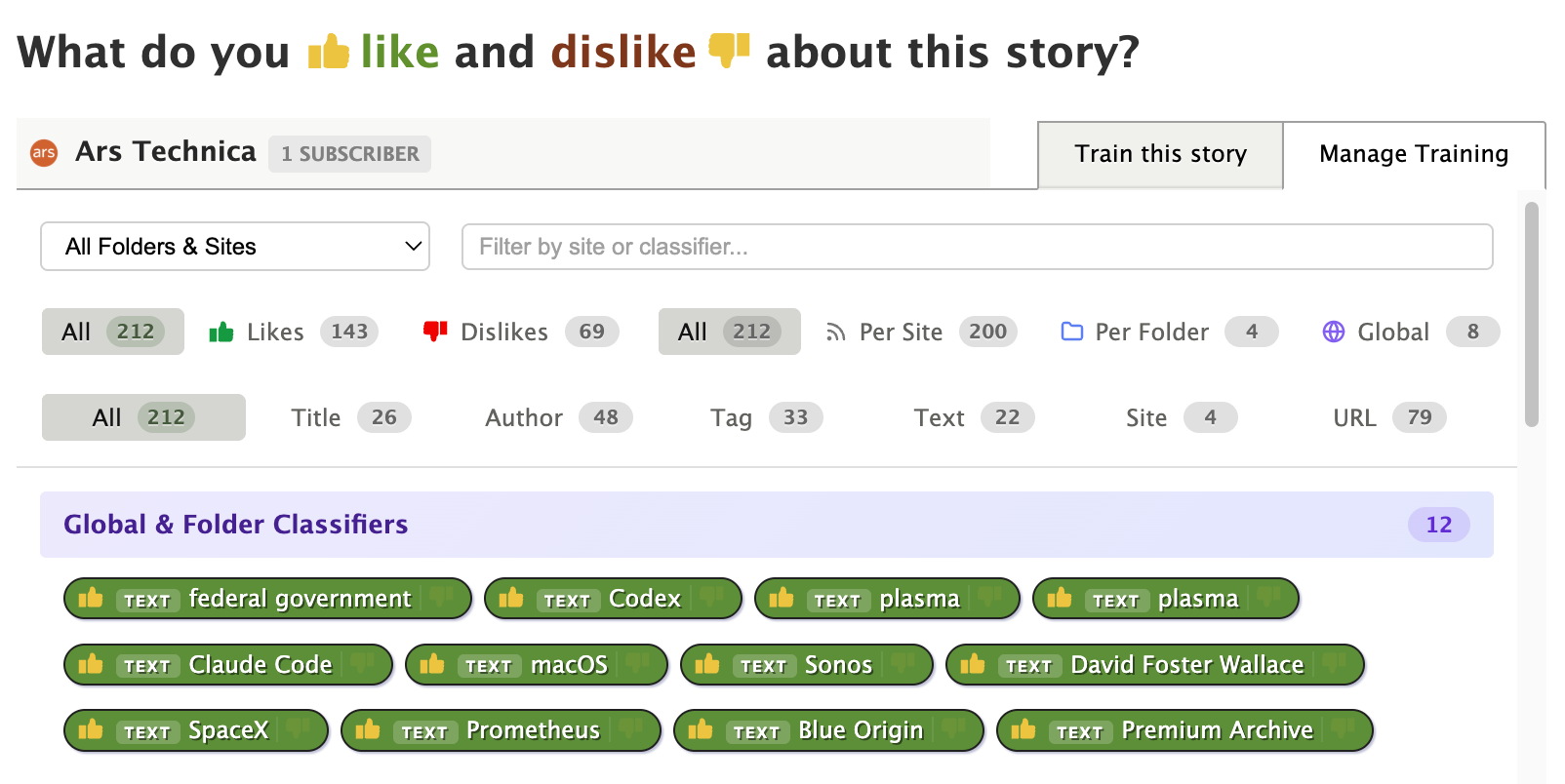
Each classifier pill in the Manage Training list also shows a small colored scope badge, so you can tell at a glance whether a classifier is site-level, folder-level, or global.
How scoping works under the hood
When NewsBlur scores a story, it checks all classifiers that apply to that story’s feed — including any folder-scoped classifiers for the feed’s folder and any global classifiers. The same “green always wins” rule applies: if a story matches both a liked global classifier and a disliked per-site classifier, the story is marked as Focus.
Scope controls work with all classifier types: titles, authors, tags, text, and URLs. They also work with regex classifiers.
Subscription tiers
| Feature | Tier Required |
|---|---|
| Per-site classifiers (default) | Free |
| Global and folder-scoped classifiers | Premium Archive |
| Manage Training scope filter | Premium Archive |
Global and folder-scoped classifiers are available now on the web. If you have feedback or ideas for improvements, please share them on the NewsBlur forum.
This is a companion discussion topic for the original entry at https://blog.newsblur.com/2026/02/02/global-and-folder-scoped-intelligence-training/