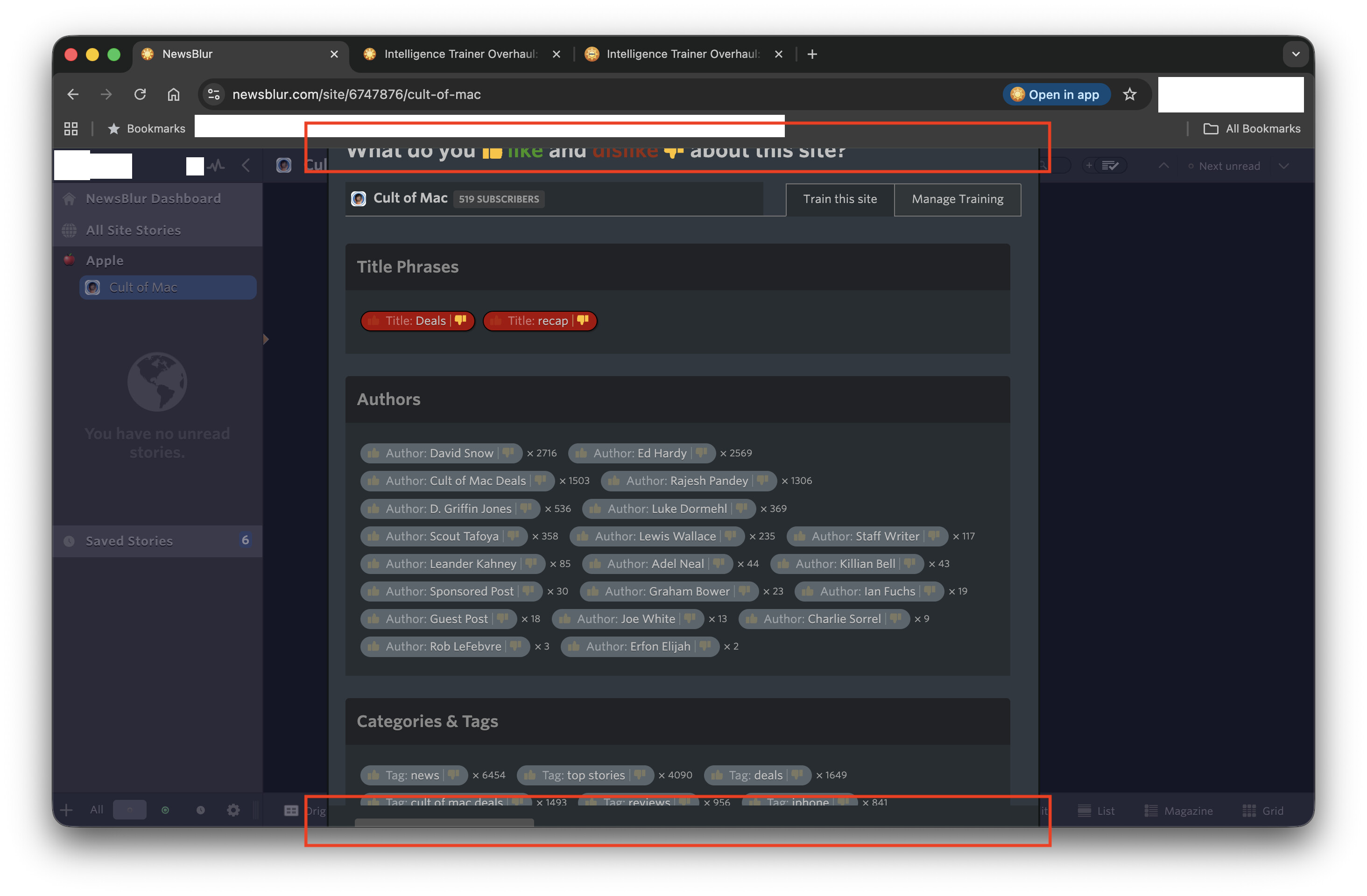
<p>The Intelligence Trainer is one of NewsBlur’s most powerful features. It lets you train on authors, tags, titles, and text to automatically sort stories into Focus, Unread, or Hidden. But until now, there were limits—you couldn’t train on URLs, regex support was something power users had been requesting for years, and managing hundreds of classifiers meant clicking through feeds one by one.</p>
Today I’m launching three major improvements: URL classifiers, regex mode for power users, and a completely redesigned Manage Training tab.
Train on URLs
You can now train on story permalink URLs, not just titles and content. This opens up new filtering possibilities based on URL patterns.
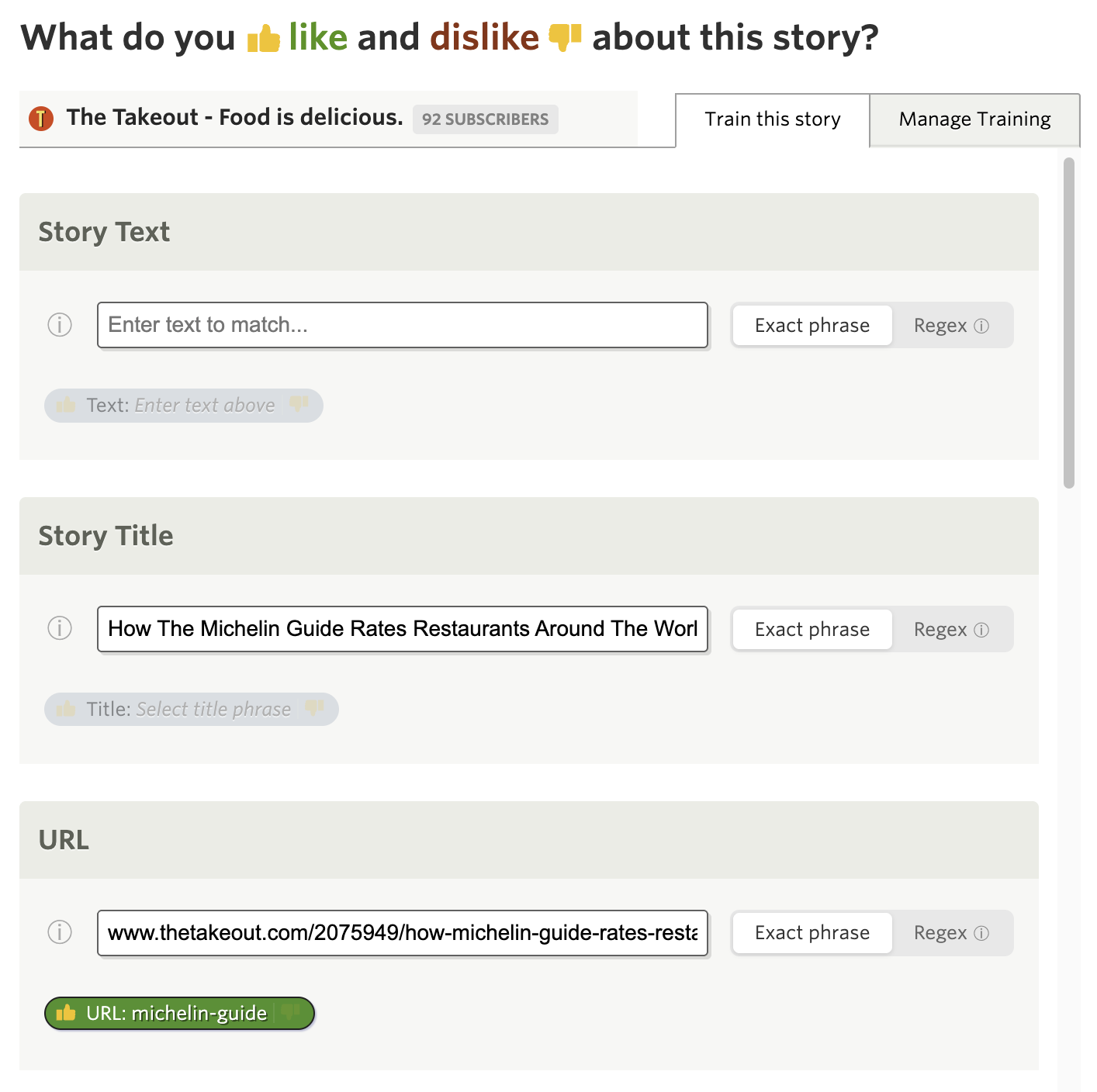
The URL classifier matches against the full story permalink. Some use cases:
- Filter by URL path: Like or dislike stories that contain
/sponsored/or/opinion/in their URL - Domain sections: Match specific subdomains or URL segments that indicate content types
- Landing pages vs articles: Some feeds include both—filter by URL structure to show only what you want
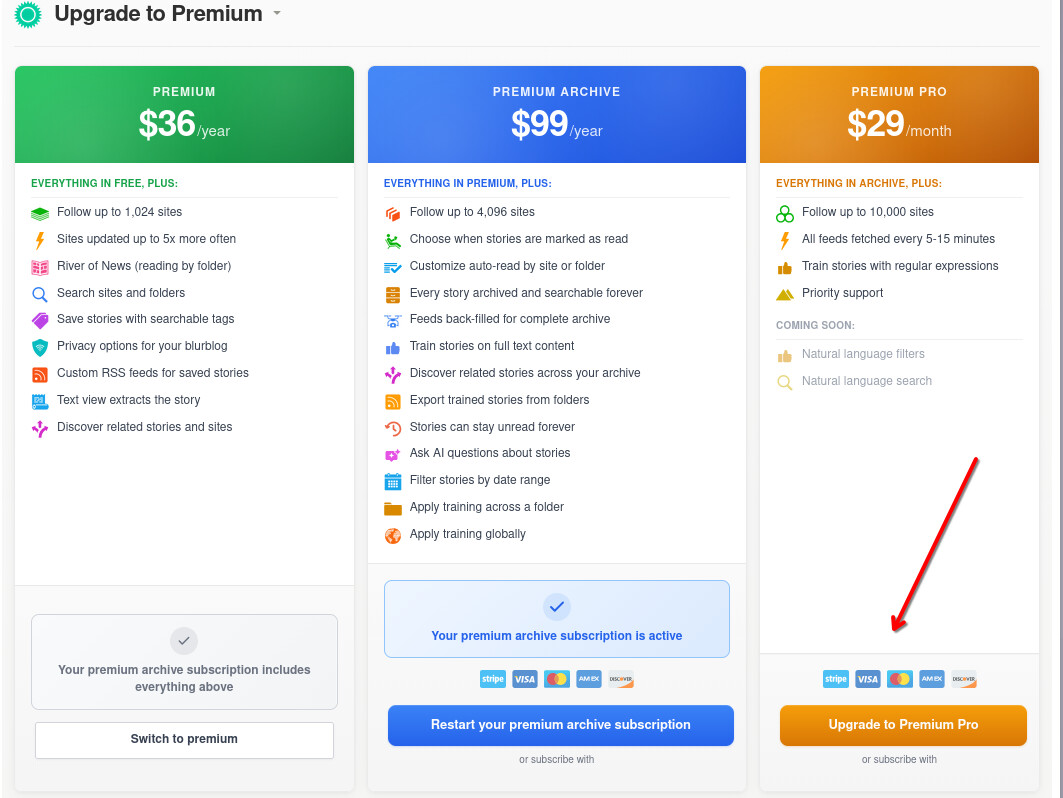
URL classifiers support both exact phrase matching and regex mode. The exact phrase match is available to Premium subscribers, while regex mode requires Premium Pro.
When a URL classifier matches, you’ll see the matched portion highlighted directly in the story header, so you always know why a story was filtered.
Regex matching for power users
For years, the text classifier only supported exact phrase matching. If you wanted to match “iPhone” and “iPad” you needed two separate classifiers. Now you can use regex patterns in the Title, Text, and URL classifiers.
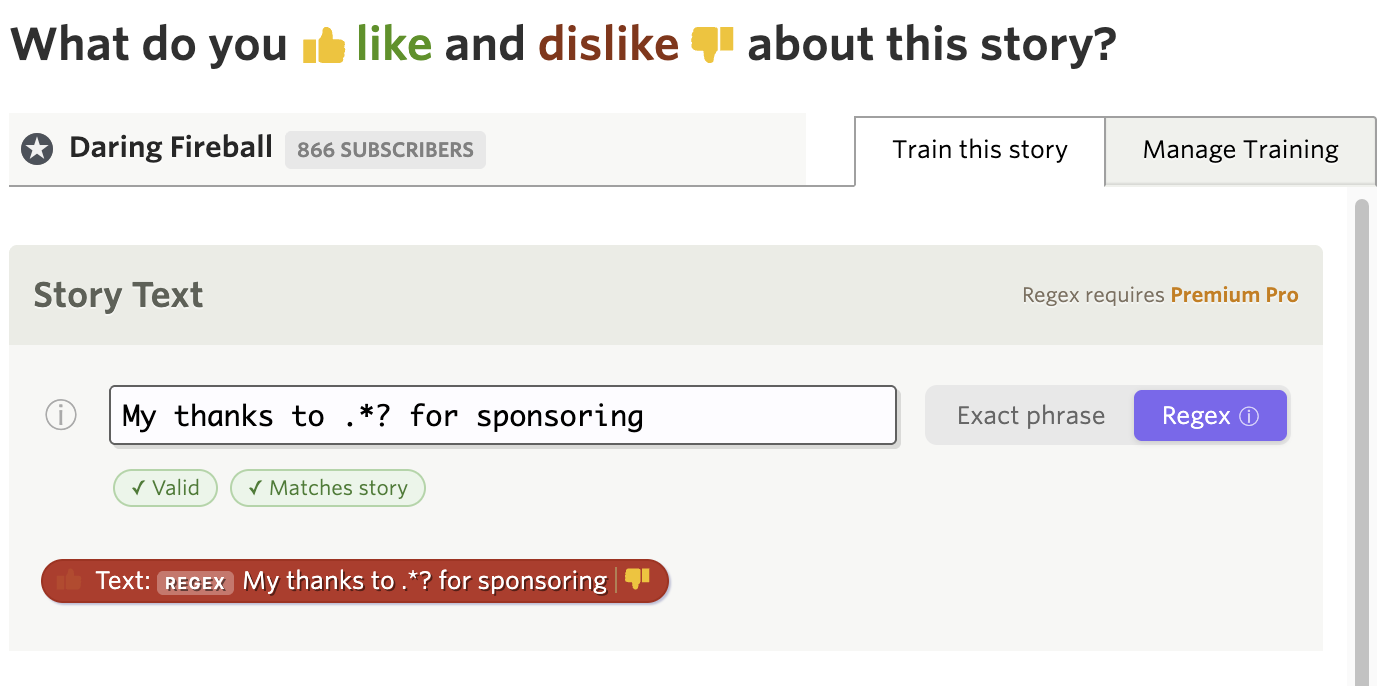
A segmented control lets you switch between “Exact phrase” and “Regex” mode. In regex mode, you get access to the full power of regular expressions:
- Word boundaries (
\b): Match\bapple\bto find “apple” but not “pineapple” - Alternation (
|): MatchiPhone|iPad|Macin a single classifier - Optional characters (
?): Matchcolou?rto find both “color” and “colour” - Anchors (
^and$): Match patterns at the start or end of text - Character classes: Match
[0-9]+for any number sequence
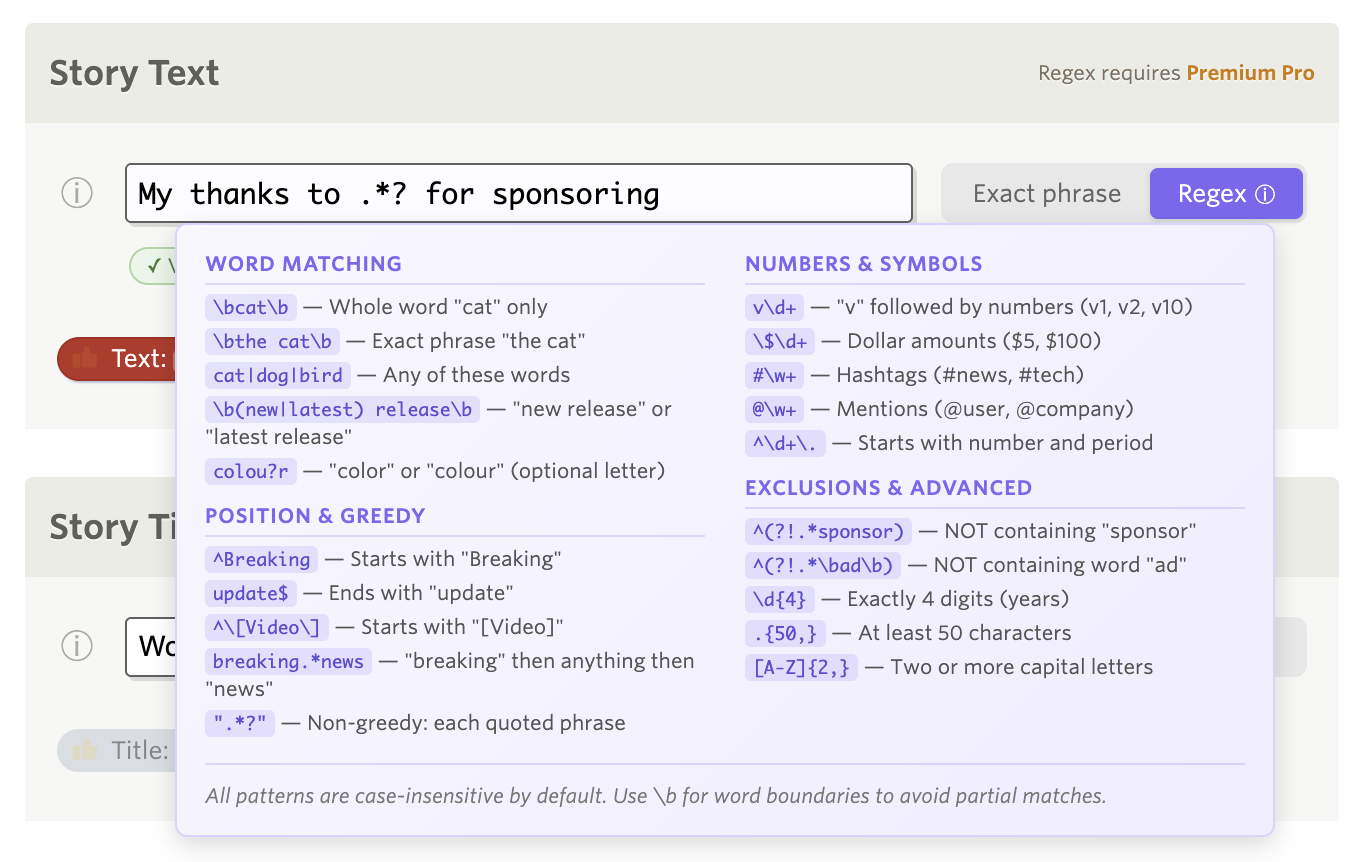
A built-in help popover explains regex syntax with practical examples. The trainer validates your regex in real-time and shows helpful error messages if the pattern is invalid.
Regex matching is case-insensitive, so apple matches “Apple”, “APPLE”, and “apple”. This mode is available to Premium Pro subscribers.
Manage all your training in one place
Over the years you may have trained NewsBlur on hundreds of authors, tags, and titles across dozens of feeds. But when you wanted to review what you’d trained, you had to open each feed’s trainer individually and click through them one by one.
The new Manage Training tab provides a consolidated view of every classifier you’ve ever trained, organized by folder. You can see everything at a glance, edit inline, and save changes across multiple feeds in a single click.
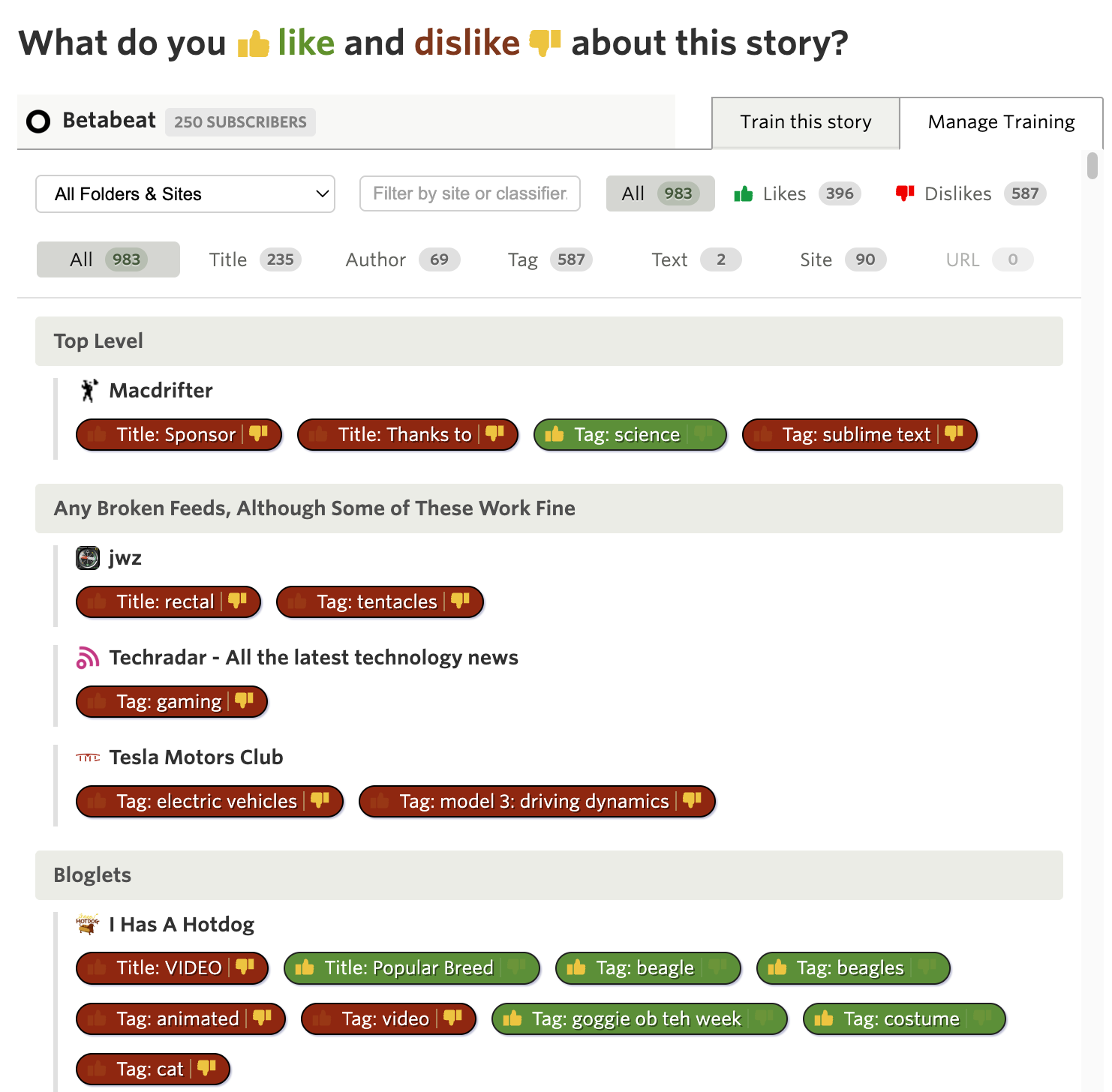
Open the Intelligence Trainer from the sidebar menu (or press the t key). You’ll now see two tabs at the top: “Site by Site” and “Manage Training”. The Manage Training tab is available everywhere you train—from the story trainer, feed trainer, or the main Intelligence Trainer dialog.
The Site by Site tab is the existing trainer you know—it walks you through each feed showing authors, tags, and titles you can train. That’s still the best way to train new feeds with lots of suggestions.
The Manage Training tab shows only what you’ve already trained. Every thumbs up and thumbs down you’ve ever given, organized by folder just like your feed list. Each feed shows its trained classifiers as pills you can click to toggle.
Filtering made easy
The real power comes from the filtering options. At the top of the tab you’ll find several ways to narrow down your training:
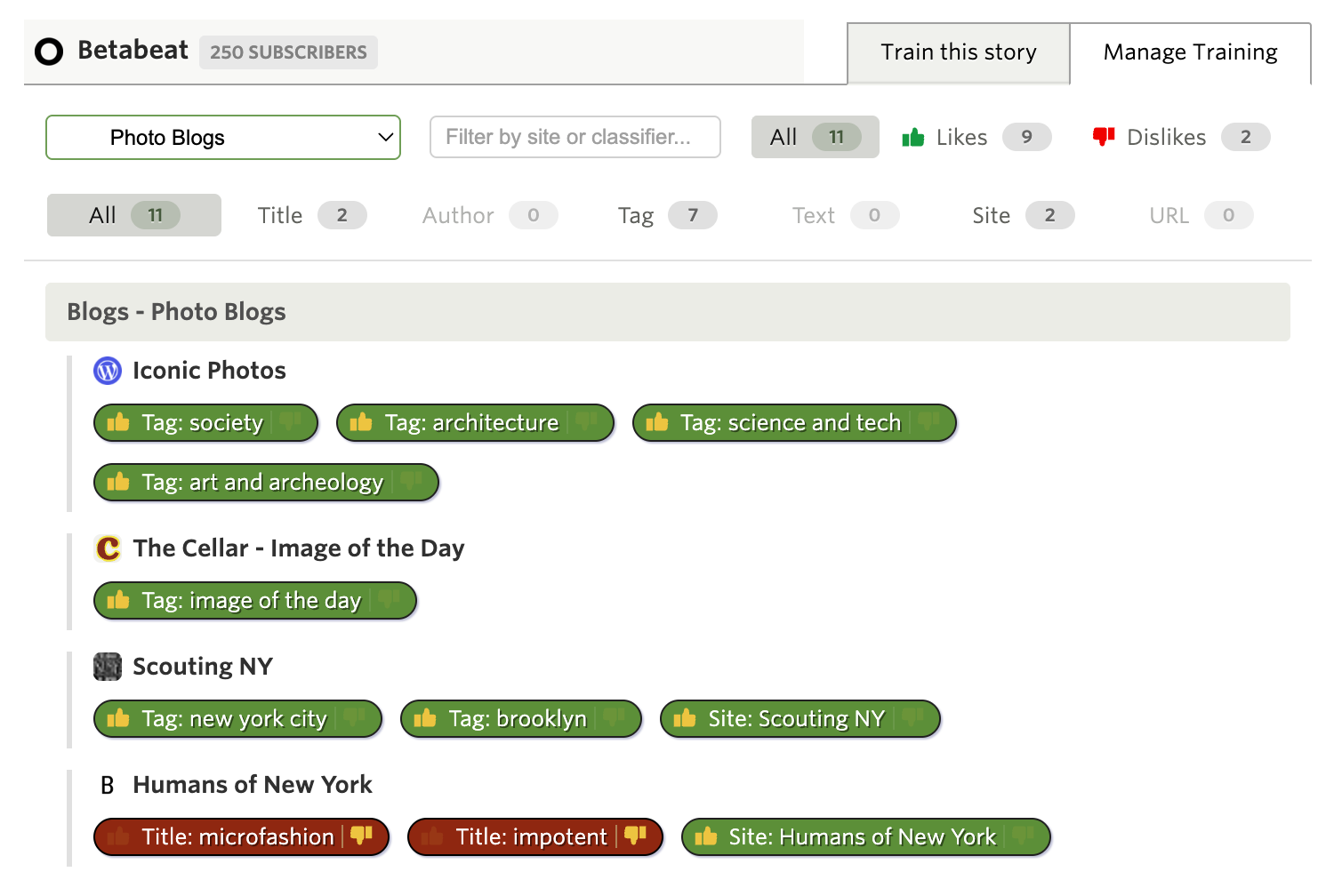
Folder/Site dropdown — Only folders and sites with training appear in this dropdown. Select a folder to see all training within it, or select a specific site to focus on just that feed’s classifiers. This is especially useful when you have hundreds of trained items and want to review just one area.
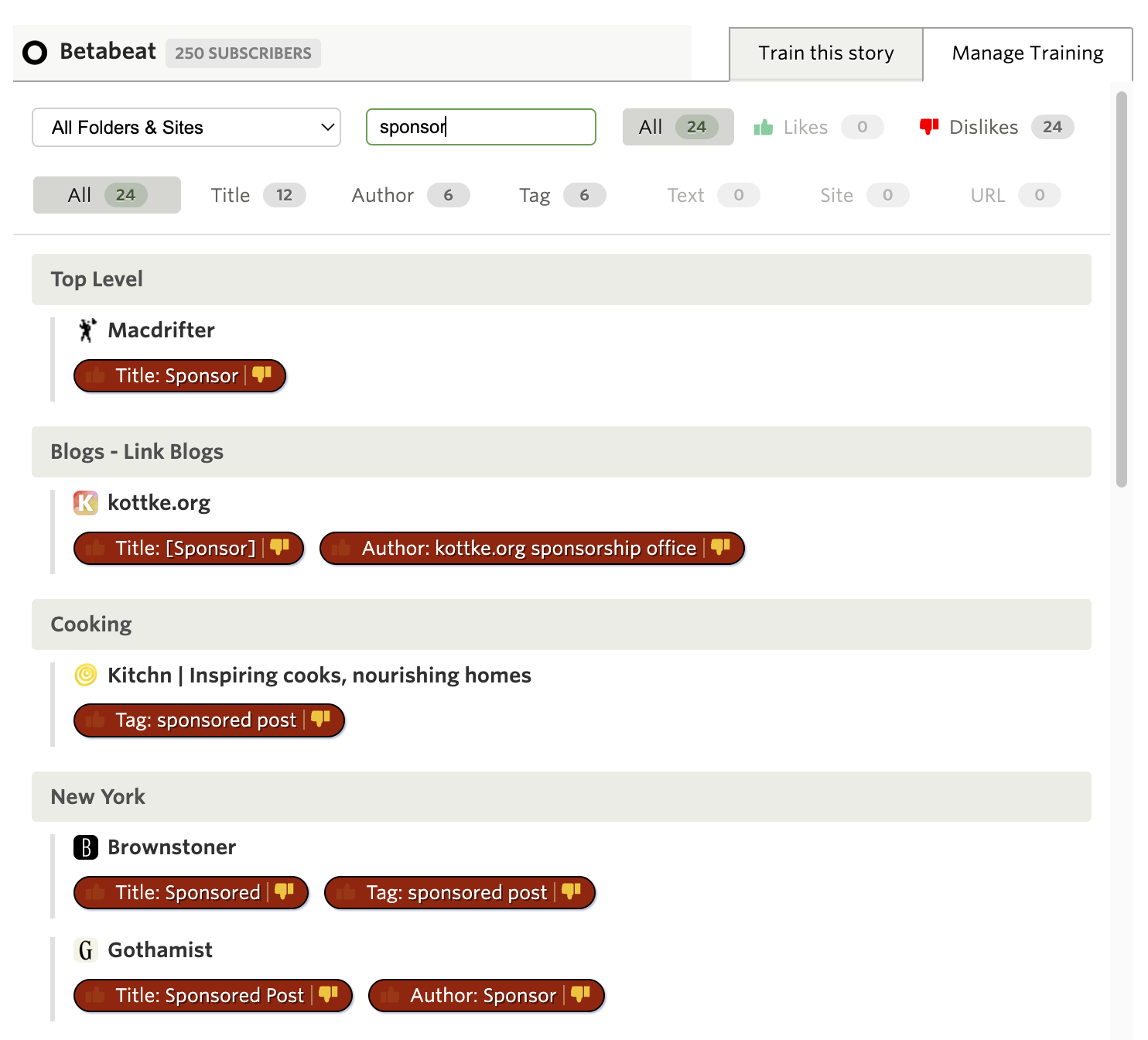
Instant search — Type in the search box and results filter as you type. Search matches against classifier names, feed titles, and folder names. Looking for everything you’ve trained about “apple”? Just type it and see all matches instantly.
Likes and Dislikes — Toggle between All, Likes only, or Dislikes only. Want to see everything you’ve marked as disliked? One click shows you all the red thumbs-down items across your entire training history.
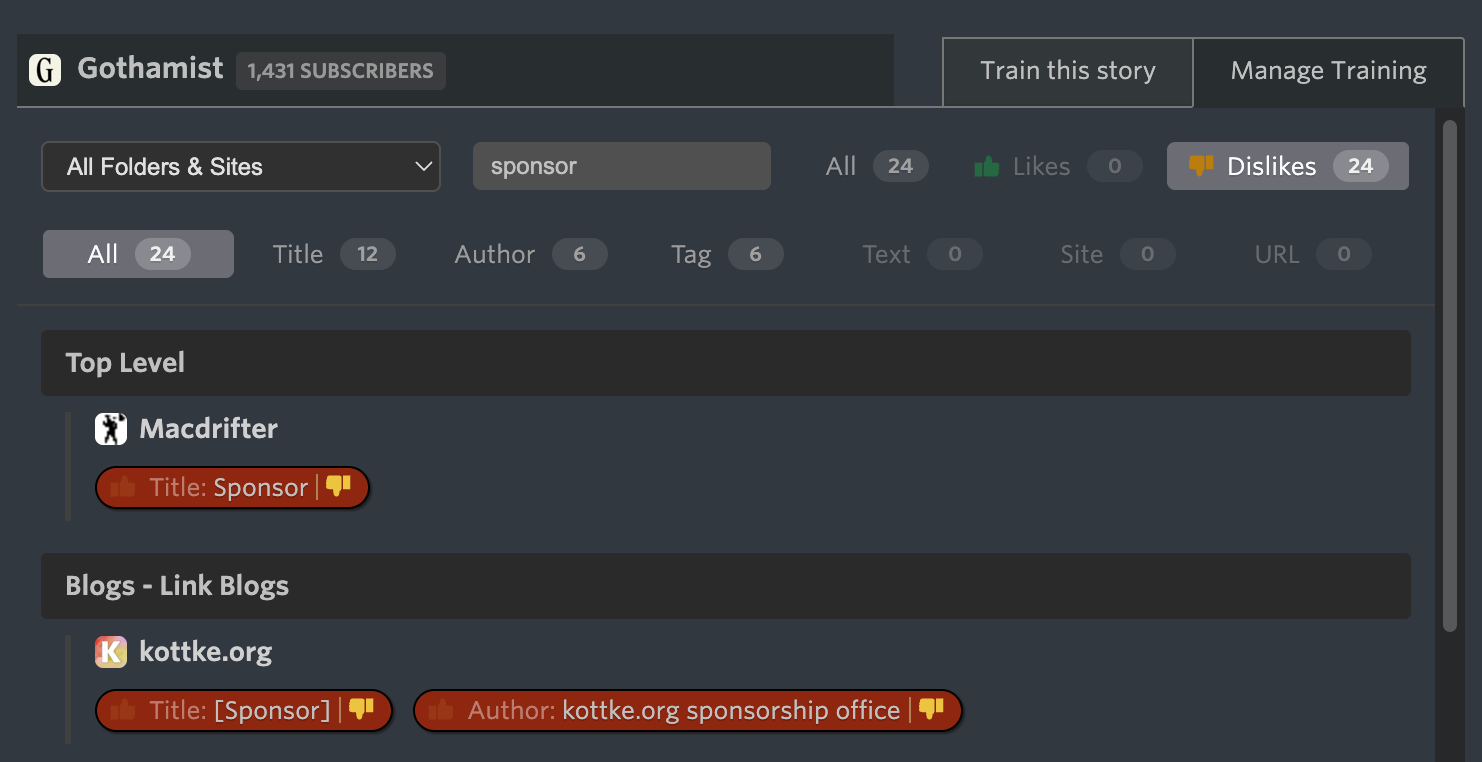
Type filters — Filter by classifier type: Title, Author, Tag, Text, URL, or Site. These are multi-select, so you can show just Authors and Tags while hiding everything else. Perfect for when you want to audit just the authors you’ve trained across all your feeds.
Edit inline and save in bulk
Click any classifier pill to toggle it between like, dislike, and neutral. The Save button shows exactly how many changes you’ve made, so you always know what’s pending. Made a mistake? Just click again to undo—the count updates automatically.
When you click Save, all your changes across all feeds are saved in a single request. No more clicking through feeds one at a time to clean up old training.
Subscription tiers
| Feature | Tier Required |
|---|---|
| Title/Author/Tag/Feed classifiers | Free |
| Manage Training tab | Free |
| URL classifiers (exact phrase) | Premium |
| Text classifiers (exact phrase) | Premium Archive |
| Regex mode (Title, Text, URL) | Premium Pro |
All three features are available now on the web. If you have feedback or ideas for improvements, please share them on the NewsBlur forum.
This is a companion discussion topic for the original entry at https://blog.newsblur.com/2026/01/22/intelligence-trainer-overhaul/