<p>Every morning I open NewsBlur and scroll through hundreds of unread stories. Most days I can keep up. But some days I just want someone to tell me what matters. What’s the big story across my feeds? What are the long reads I should save for later? What matches the topics I’ve trained as interesting?</p>
That’s the Daily Briefing. It reads your feeds, scores every story, and writes a personalized summary organized into sections that make sense for the way you read. It shows up as a feed in your sidebar, and you can have it emailed to you on a schedule you control.
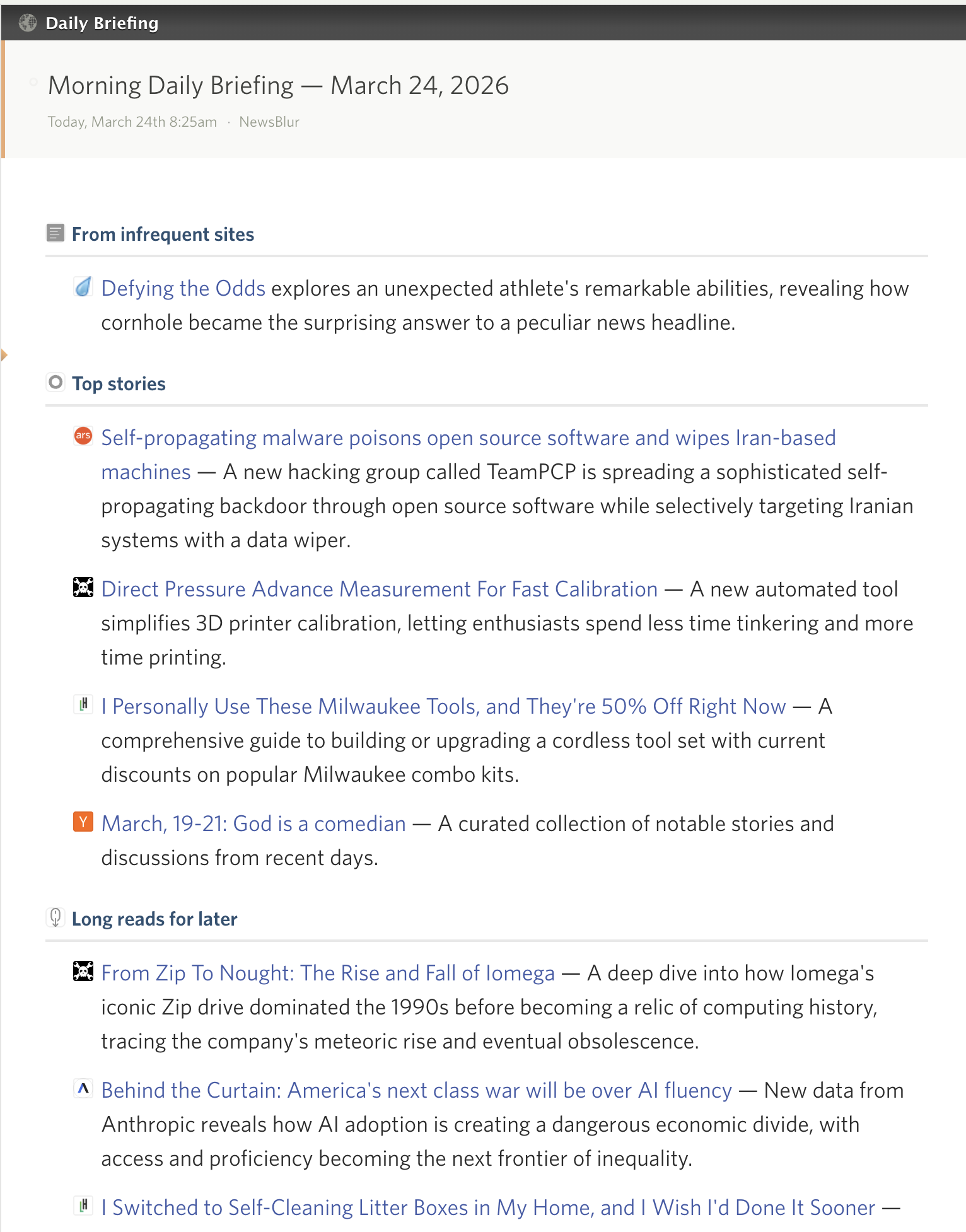
How it works
Click “Daily Briefing” in your sidebar to open the briefing view. The first time, you’ll see an onboarding screen where you configure your preferences. Hit generate and NewsBlur does the rest: it scores your stories using a mix of trending read time, feed engagement, how often you read each feed, your classifier training, and recency, then generates a written summary of the top stories.
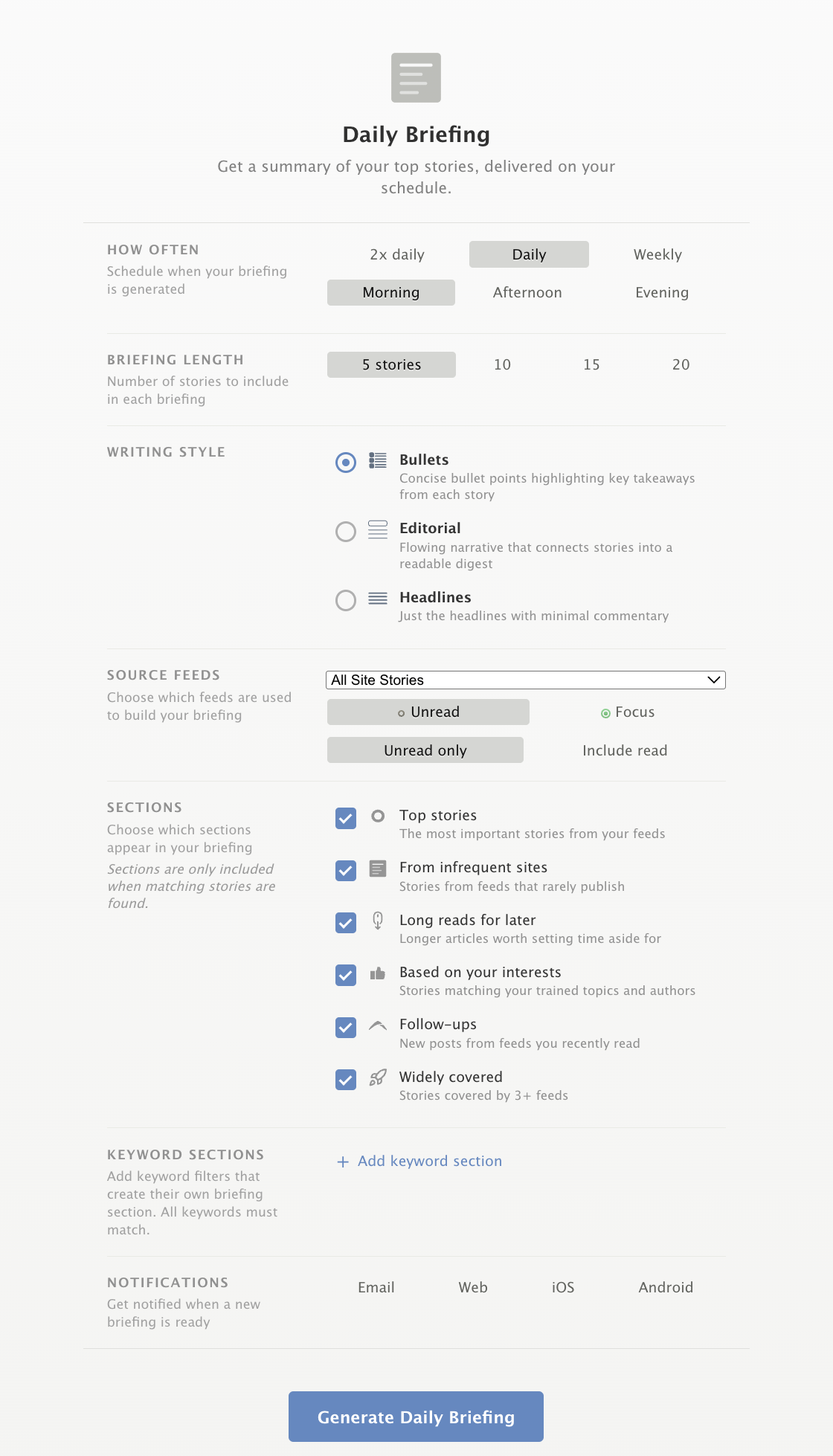
Each briefing is organized into sections:
- Top stories — The most important stories from your feeds, ranked by a weighted score of trending engagement, how often you read each feed, your classifier training, and recency
- From infrequent sites — Stories from feeds that rarely publish, so they don’t get buried under higher-volume feeds
- Long reads for later — Longer articles worth setting time aside for, detected by word count
- Based on your interests — Stories matching your trained topics, authors, and tags, with green classifier pills showing exactly why each story was selected
- Follow-ups — New posts from feeds where you recently read other stories
- Widely covered — Stories that appear across 3 or more of your feeds, using NewsBlur’s story clustering to group duplicates
You can enable or disable any of these sections, and drag to reorder them so your briefing is organized the way you want. If you only care about top stories and classifier matches, turn off the rest.
Custom keyword sections
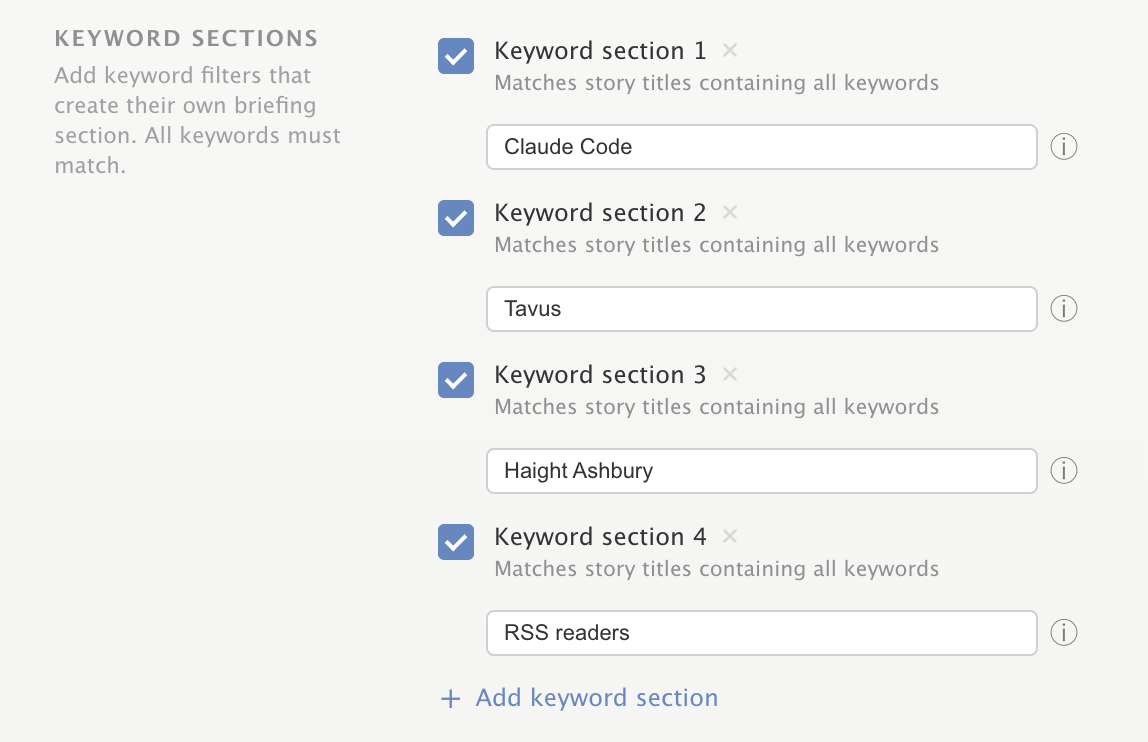
On top of the built-in sections, you can add up to five custom keyword sections. Type a keyword or phrase and NewsBlur uses Elasticsearch to find matching stories across your feeds, then a dedicated section is written for them. If you always want a section about “climate change” or “Apple earnings,” just add the keyword and it appears in every briefing when there’s stories that match.
Three writing styles
Choose how you want your briefing written:
- Bullets — One-sentence summaries for each story, grouped by section. Quick to scan.
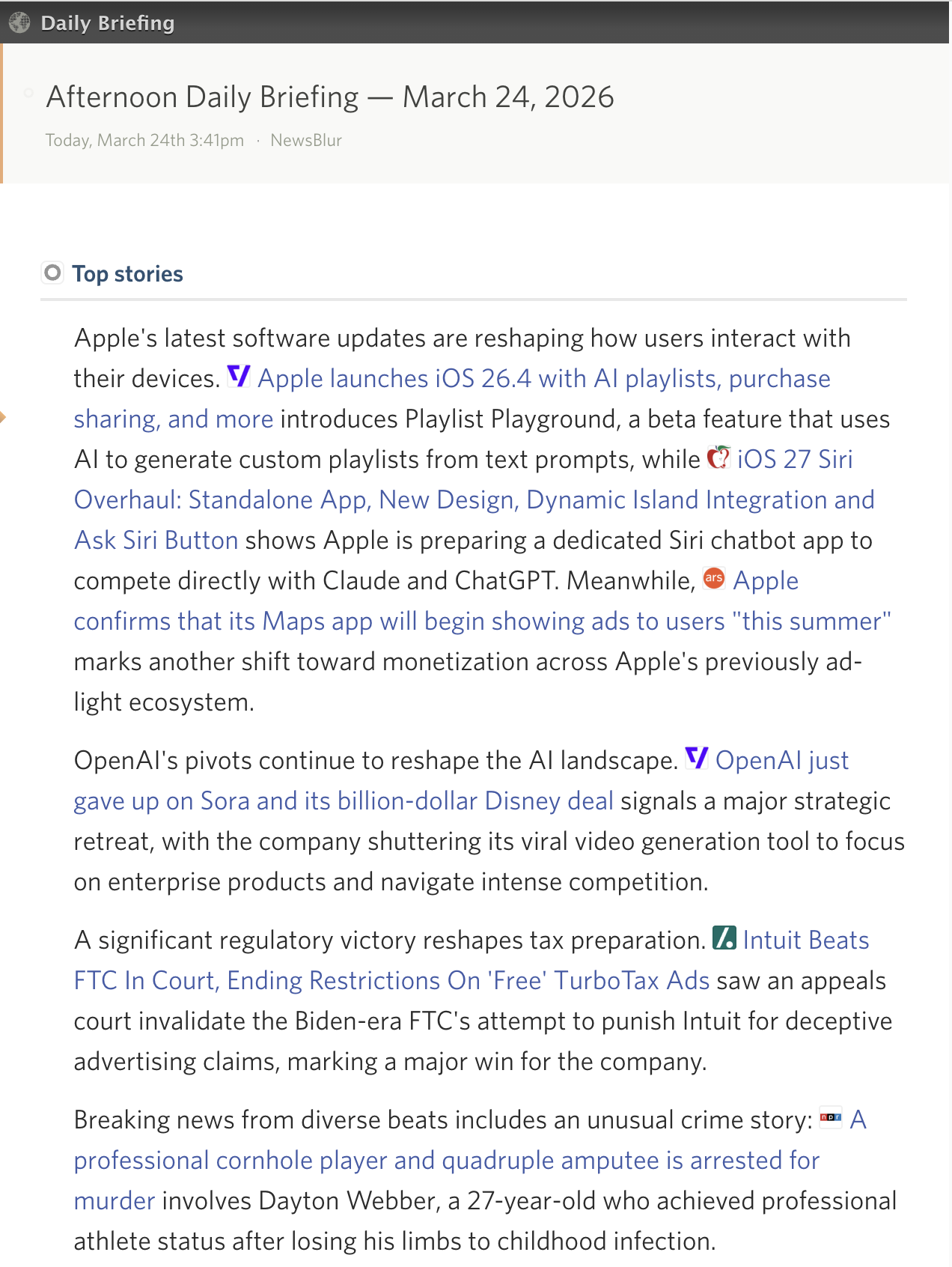
- Editorial — Narrative prose that explains why each story matters and connects them thematically. Each story’s feed favicon appears as an inline bullet.
- Headlines — Just the linked story titles, nothing else. The fastest way to scan.
Delivery schedule
Set the briefing to generate once, twice, or three times a day, or weekly. Each frequency has its own delivery slots:
- Daily: Pick morning, afternoon, or evening
- Twice daily: Morning plus your choice of afternoon or evening
- Three times daily: Morning, afternoon, and evening
- Weekly: Pick the day of the week
Briefings are delivered at fixed times in your local timezone: 8:30 AM, 12:30 PM, and 5:00 PM. Each briefing only includes stories from its lookback window, and stories never repeat across same-day briefings.
Notifications
Turn on email notifications for your briefing feed and the full summary lands in your inbox, complete with feed favicons, section icons, and classifier pills. The HTML is fully inlined for email clients, so it looks right in Gmail, Apple Mail, Outlook, and everywhere else.
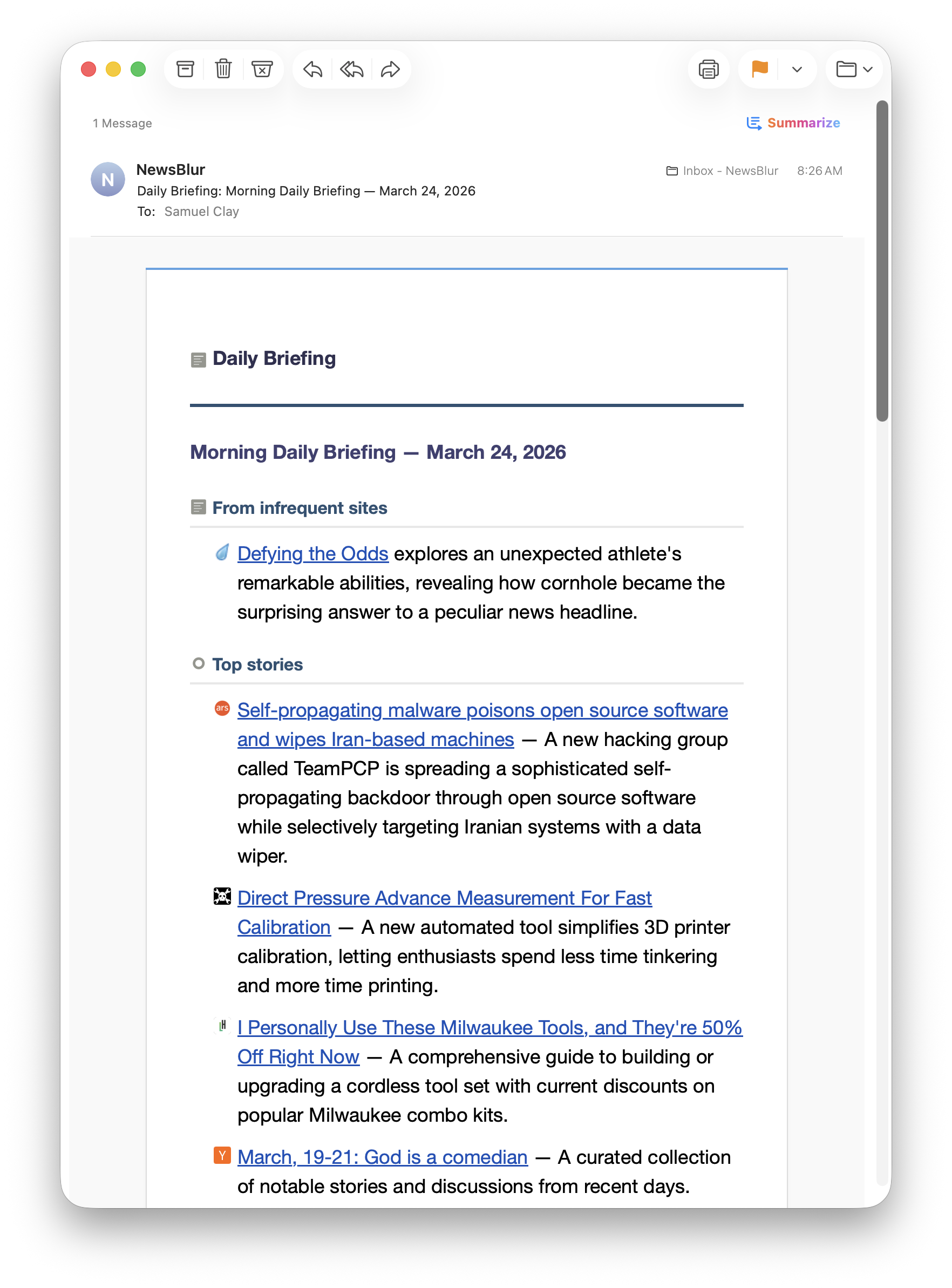
You can also enable web, iOS, and Android push notifications if you’d rather get a ping than an email.
Choose your model
The briefing summary is written by a language model, and you can pick which one. The same model selector from Ask AI is available here, so you can use whichever model you prefer for writing style and quality.
Your data stays yours
The briefing uses your feed stories and classifier training to generate the summary. Story content is sent to the model provider you choose, but NewsBlur doesn’t use your data to train models or for any purpose beyond generating your briefing. The same privacy principles from Ask AI apply here.
Availability
The Daily Briefing is available now on the web for Premium Archive and Premium Pro subscribers. You can configure everything from the briefing view in the sidebar.
All users can open the Daily Briefing to see a preview with a handful of top stories. To unlock full briefings with all sections, custom keywords, and scheduled delivery, upgrade to Premium Archive.
If you have feedback or ideas for how to make the Daily Briefing better, please share them on the NewsBlur forum.
This is a companion discussion topic for the original entry at https://blog.newsblur.com/2026/03/25/daily-briefing/