<p>On the web, I keep NewsBlur’s dashboard open all day with a few folders side by side, so I can glance over and see what’s new. On my Mac I wanted that same glance without a browser tab or the app sitting in front of me. NewsBlur 16 for Mac gets there with two pieces that work together: widgets that each show a folder or site of your choice, and native Mac notifications from the sites you pick.</p>
Put together, they give you a way to follow the news while you work. Headlines from the folders you care about sit one swipe away, and new stories from the handful of sites you never want to miss show up in the corner of your screen. You don’t have to pick up your phone to check, and you don’t have to open a reader and lose twenty minutes in it.
A dashboard made of widgets
Every NewsBlur widget now has its own source. Add one for All Site Stories, another for your Tech folder, and another for a single site you follow closely. Each one shows its own newest unread stories. Stack them in Notification Center or put them on your desktop, and you’ve got the NewsBlur dashboard living right in macOS.
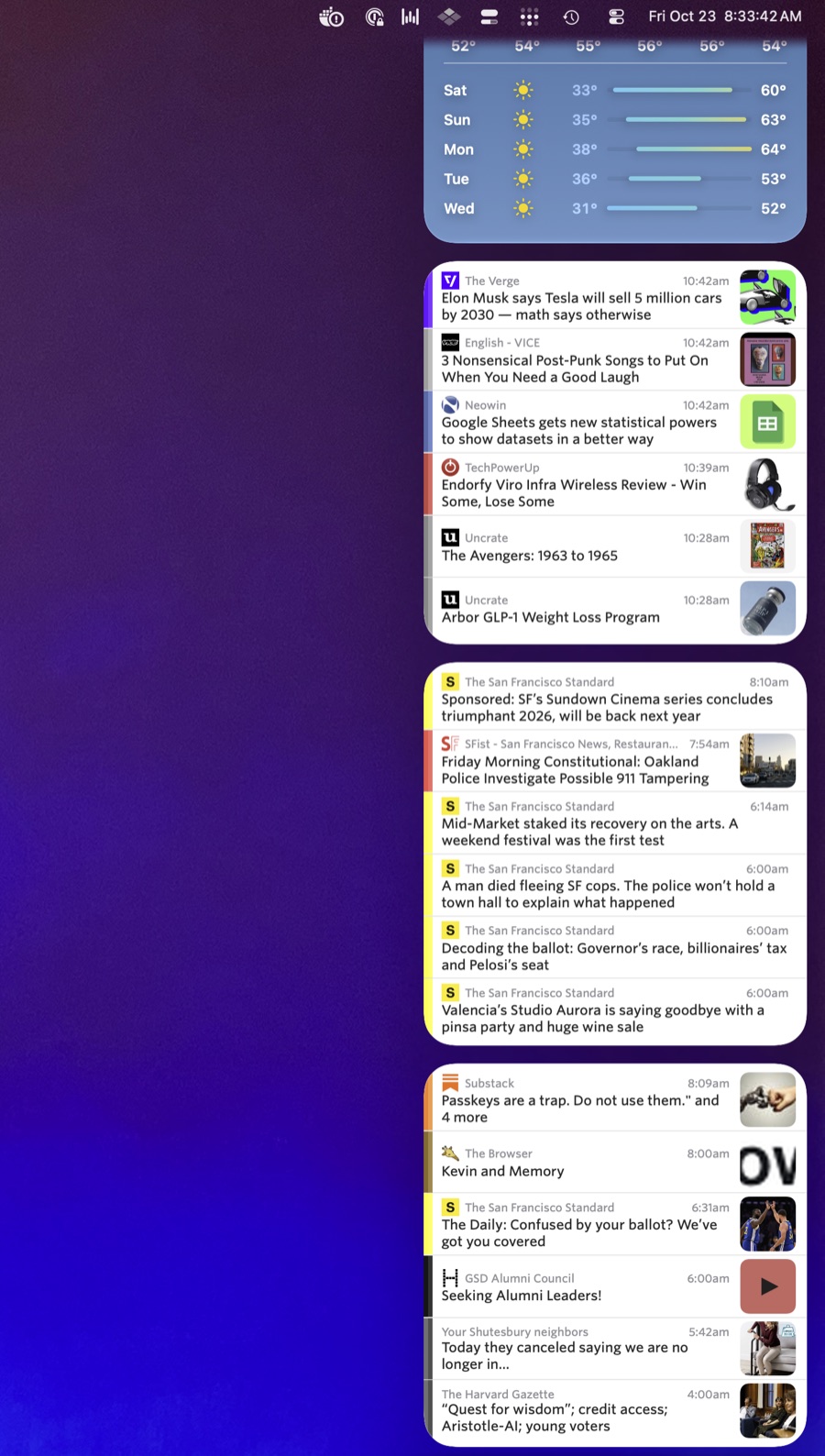
Widgets come in two sizes. Medium shows three stories and large shows six. They follow your training, so stories you’ve trained away stay out of them. Click a story and it opens right in the Mac app.
Setting up a widget
Click the date and time in the menu bar to open Notification Center, then click Edit Widgets at the bottom. Search for NewsBlur, pick a size, and add it. If you’d rather have it on your desktop, right click the desktop and choose Edit Widgets instead.
New widgets start with All Site Stories. To change that, right click the widget, choose Edit Widget, and pick a folder or site. Folders are listed first, then every site you subscribe to, and there’s a search field if your list is long. Each widget keeps its own choice, so you can add as many as you want.
If you already had a NewsBlur widget, remove it and add it again to get the new version.
Notifications from the sites you pick
Widgets are for glancing. Notifications are for the stories you don’t want to wait on. NewsBlur can send a native Mac notification for new stories on any site, and clicking one takes you straight to that story in the app.
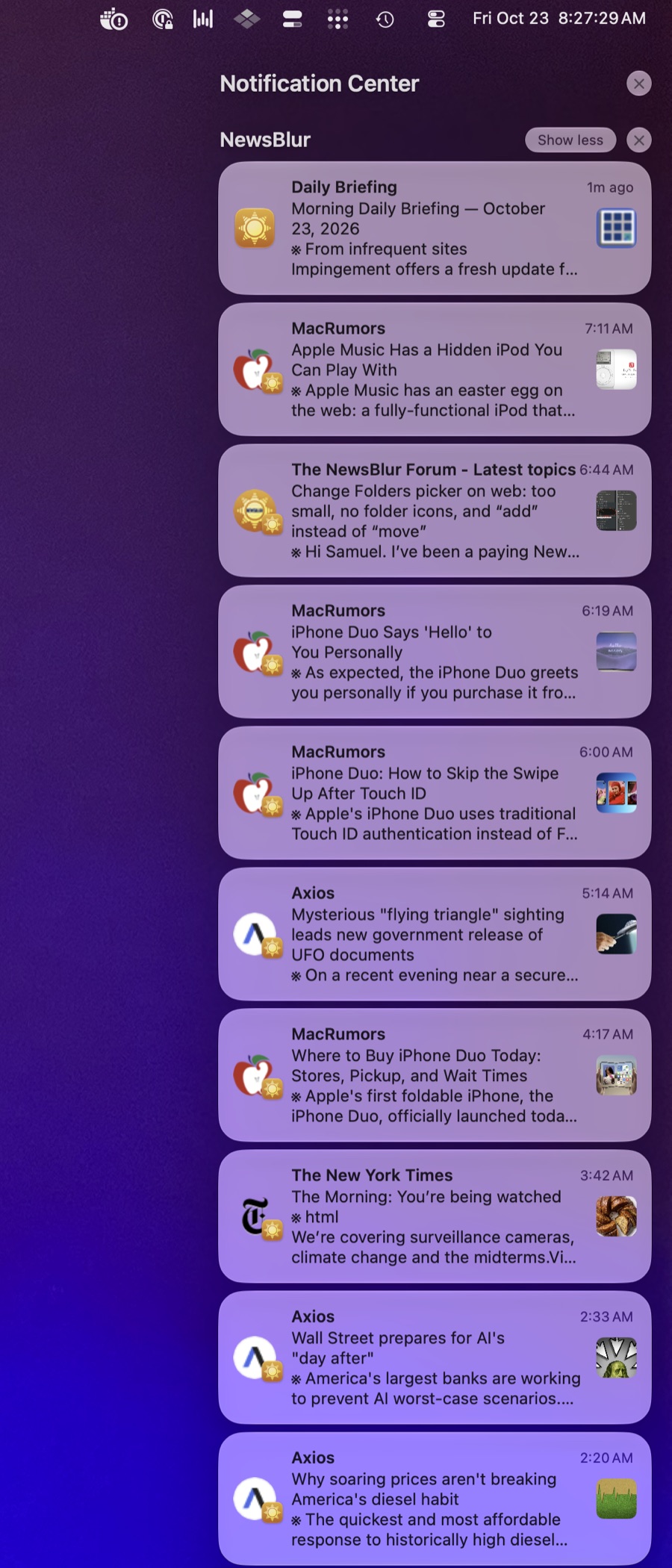
To turn them on, open a site and choose Site > Notifications… from the menu bar. Pick whether you want every unread story or only Focus stories, and turn on iOS, which covers both your iPhone and the Mac app. File > Notifications (Command Shift N) lists every site you’ve set up, so you can adjust them all in one place.
Focus is what keeps this from getting noisy. If you’ve trained a site, only the stories you like will reach you. And if a busy site only matters when it mentions a certain topic or author, per-classifier notifications let you get pinged for just those stories. Those are available on Premium Archive and Premium Pro.
The workflow
Here’s a setup that works well. Put a large widget at the top of Notification Center for the folder you read most, and a couple of medium widgets below it for folders you check less often. Turn on notifications for only the few sites where timing matters, set to Focus. Then get back to work.
When you want a break, swipe in from the right edge of your trackpad with two fingers and the whole dashboard is there. When something you care about is published, it comes to you. Either way your phone stays face down on the desk.
Everything else in NewsBlur 16 for Mac
- NewsBlur for Mac now speaks 21 languages. Choose one from the NewsBlur menu, or follow your Mac’s language settings. Arabic and Hebrew read right to left, and your stories stay exactly as published. More about that in NewsBlur in your language.
- Clicking a story slides to it in the right direction.
- The sidebar has more balanced spacing and compact filters, with Add Site and Settings kept separate.
- Command W closes the window while NewsBlur keeps running. Click the Dock icon to bring it back, or press Command Q to quit.
- Keyboard shortcuts work while the story list has focus, and N opens the first unread story.
- Space pages down through a story, and when you reach the bottom it opens the next unread story, just like on the web. Shift Space pages back up and opens the previous story at the top. You can set how far each press scrolls in Preferences or in the Keyboard Shortcuts dialog.
NewsBlur 16 is available now on the Mac App Store. If you’ve found a widget setup you like, or something isn’t working the way you’d expect, I’d love to hear about it on the NewsBlur forum.
This is a companion discussion topic for the original entry at https://blog.newsblur.com/2026/10/22/newsblur-16-for-mac/